

Product Feature Update
We have some exciting new features to share with users of LeadMe inside a Lumination Learning Lab. Please note that to support the features of this update, some manual steps are required. See below for details.
Loading Custom Experiences
Users can now upload custom experiences onto LeadMe to use inside a Lumination Learning Lab. For schools or organisations with bespoke developed virtual reality content they can load and select this experience via the LeadMe tablet. This is very exciting for schools where students are looking to create and demonstrate content in a Lab environment. Learn more.
View Tutorial
LeadMe Configured To A Single Lab
For schools with multiple Lumination Learning Labs, LeadMe software will be configured for use in the designated Lab selected at set up. This will ensure the user has full control over the Lab environment that it was set up with and that no other tablet will work in that Lab without worrying about affecting any other Labs.

Confirmation Prompt When Exiting Experiences
When a user wants to shut down an experience a notification will pop up to confirm the action. This feature stops the accidental shut down of experiences while a user is at a station. To utilise this feature the user must update in settings. Find out more.
View Tutorial
Steps to Complete Update
This update may require a different version of .NET 6.0 installed on the NUC than is installed by default. If the tablet is having difficulty connecting, visit the install website.
Install .NET 6.0 Desktop Runtime for Windows x64. Restart the NUC and wait 10 minutes before attempting to reconnect.
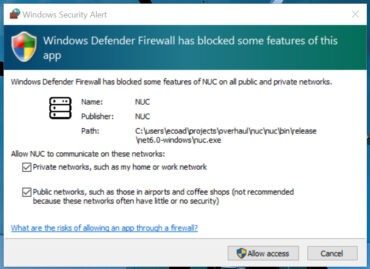
Depending on the situation, a windows notification popup may be displayed (as shown below), in which case both boxes must be checked and then click the Allow access button. This is all that is required, in the event the popup is not displayed please follow the steps below.
Step 1
Navigate to Windows Defender Firewall, then select Allow and app or feature through Windows Defender Firewall
Step 2
Select Change Settings, allowing programs to be added to the exemption list.
Step 3
Select Allow another app, then select Browse, the paths for the software are as follows:
Name: Launcher (Present on both the NUC and Station)
Path: C:\Users\Lumination\Launcher\LeadMe.exe
Name: Station
Path: C:\Users\Lumination\AppData\Roaming\leadme_apps\Station\Station.exe
Please note, the AppData folder may be hidden. This can be navigated to by typing it in the file browser, or revealing hidden files.
Name: NUC
Path: C:\Users\Lumination\AppData\Roaming\leadme_apps\NUC\NUC.exe
Please note, the AppData folder may be hidden. This can be navigated to by typing it in the file browser, or revealing hidden files.
After finding the application, select Add.
Step 4
Find the newly added application in the Allowed apps and features list, this is to make sure that both the Private and Public boxes are checked.
This will work.

This will not work.

how we can help
Resources, Lesson Plans & more.

Tutorial
LeadMe: Switching Between Experiences
Using LeadMe inside a Lumination Learning Lab a user can switch between different virtual reality ex...

Tutorial
LeadMe: What are the different modes?
LeadMe empowers educators to unleash the full potential of Lumination Learning Labs with the ease of...

Tutorial
LeadMe: Accessing connected devices
Inside a Lumination Learning Lab, LeadMe allows you to access whether devices are connected within t...

Tutorial
LeadMe: Turning on a single Station
Inside a Lumination Learning Lab, LeadMe allows you to load and close experiences. Follow the guide ...
Help & Support
Service Portal
View and keep track of your support requests with our Customer Service team.
Knowledge Base
Troubleshoot your issue quickly by accessing guides and viewing answers to frequently asked questions.
Support Tickets
Lodge a support ticket with our Customer Service team.